Guide for range officials scoring a land-based tournament with the NASP® Portal app
This guide covers the basic scoring workflow for range officials: opening Tournament Scoring, entering pin codes, and using the scoring screens.
- Install the NASP Portal app from the Apple App Store or Google Play Store.
- You must be added as a range official by the tournament administrator.
- You will receive two pin codes for scoring access: Pin Code 1 and Pin Code 2.
- Your pin codes are unique to you and that tournament. Keep them private.
- Pin codes only work during the tournament dates.
- Open the NASP Portal app.
- Tap the menu icon in the top-left corner.
- Select Tournament Scoring.
- Tap the + icon to add a tournament.
- Enter Pin Code 1 and Pin Code 2 exactly as provided.
- Tap Add Tournament.
- If prompted, confirm that the tournament's range type is correct.
- Select that tournament to begin scoring.
If a pin code fails: verify both codes and ask the tournament administrator to confirm your range-official setup and tournament dates.
- Tap to add an archer to your list.
- Search by name or shooter number, then select the archer.
- Tap the archer to open scoring.
- Select the current end.
- Enter all 5 arrow values for that end.
- Tap the green save button.
- Review the arrow values and end total, then tap Submit Arrows.
- Repeat for each end until the scorecard is complete.
- After all ends are submitted, verify the total and move to the next archer.
Keep paper scorecards as backup during scoring. If a submitted value needs correction, notify the tournament administrator so the scorecard can be unlocked and corrected.
- Scoreroom Mode: used for entering complete scorecards after shooting. It is not for at-target scoring.
- In-Process Scores View: if enabled, you can view in-process scoring status for the tournament.
Add a tournament
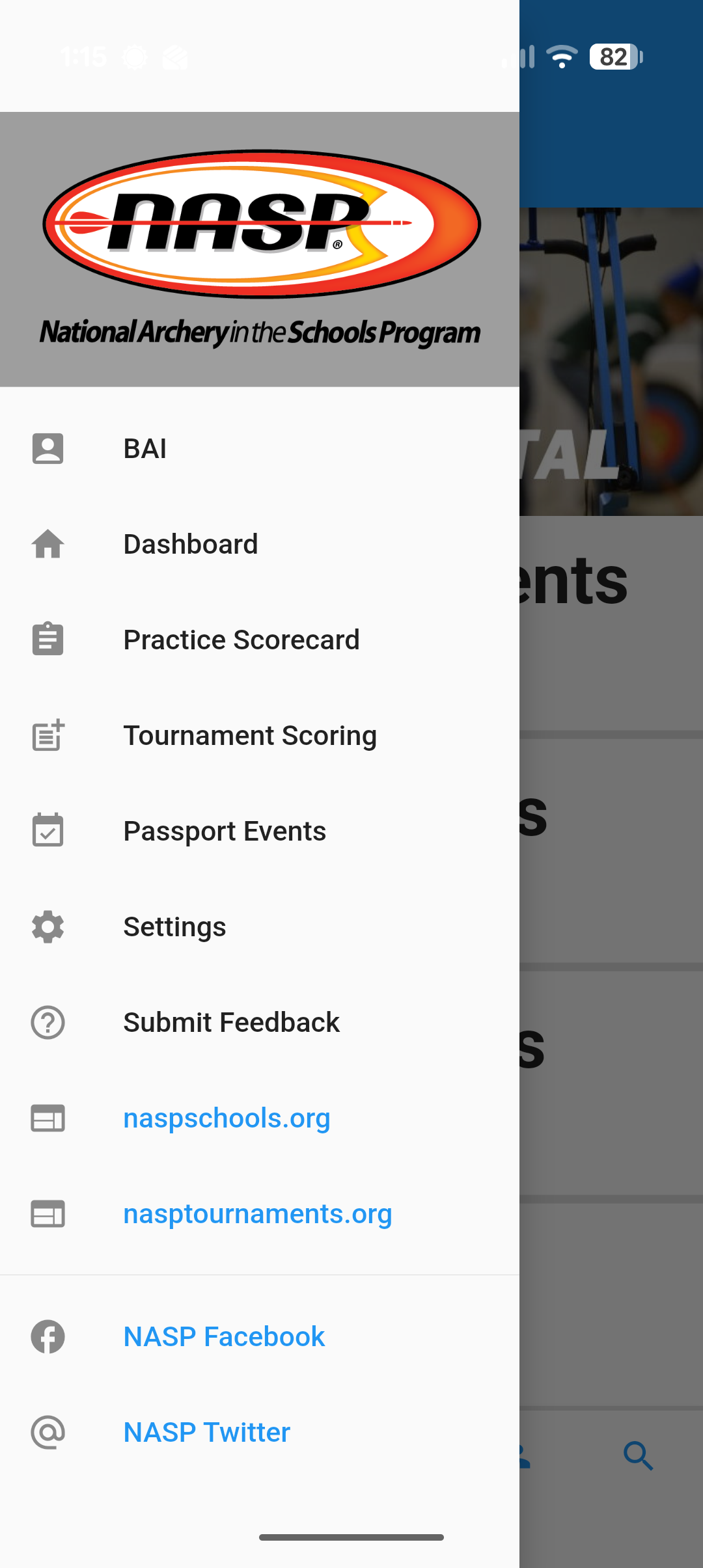 Open the menu and select Tournament Scoring.
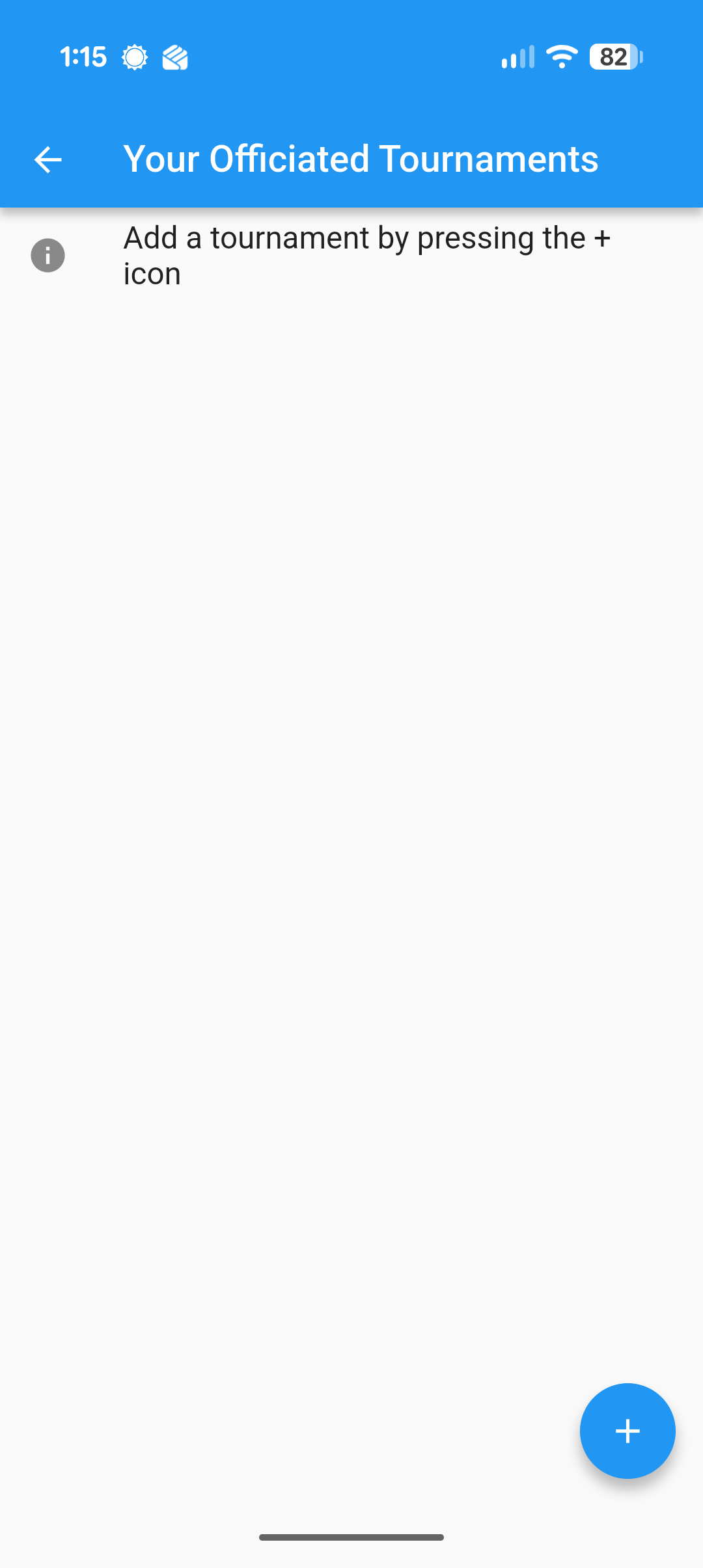 Tap the + icon to add a tournament.
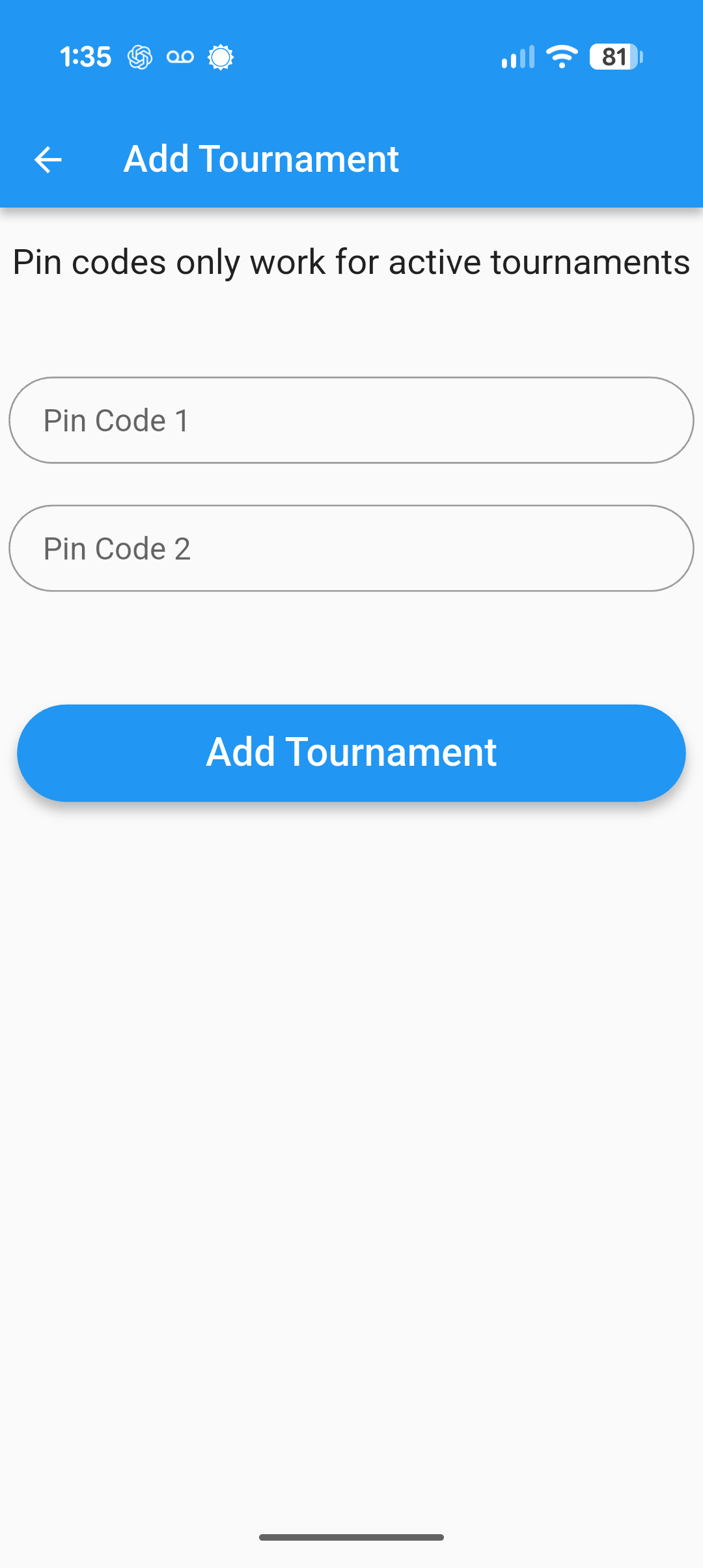 Enter Pin Code 1 and Pin Code 2.
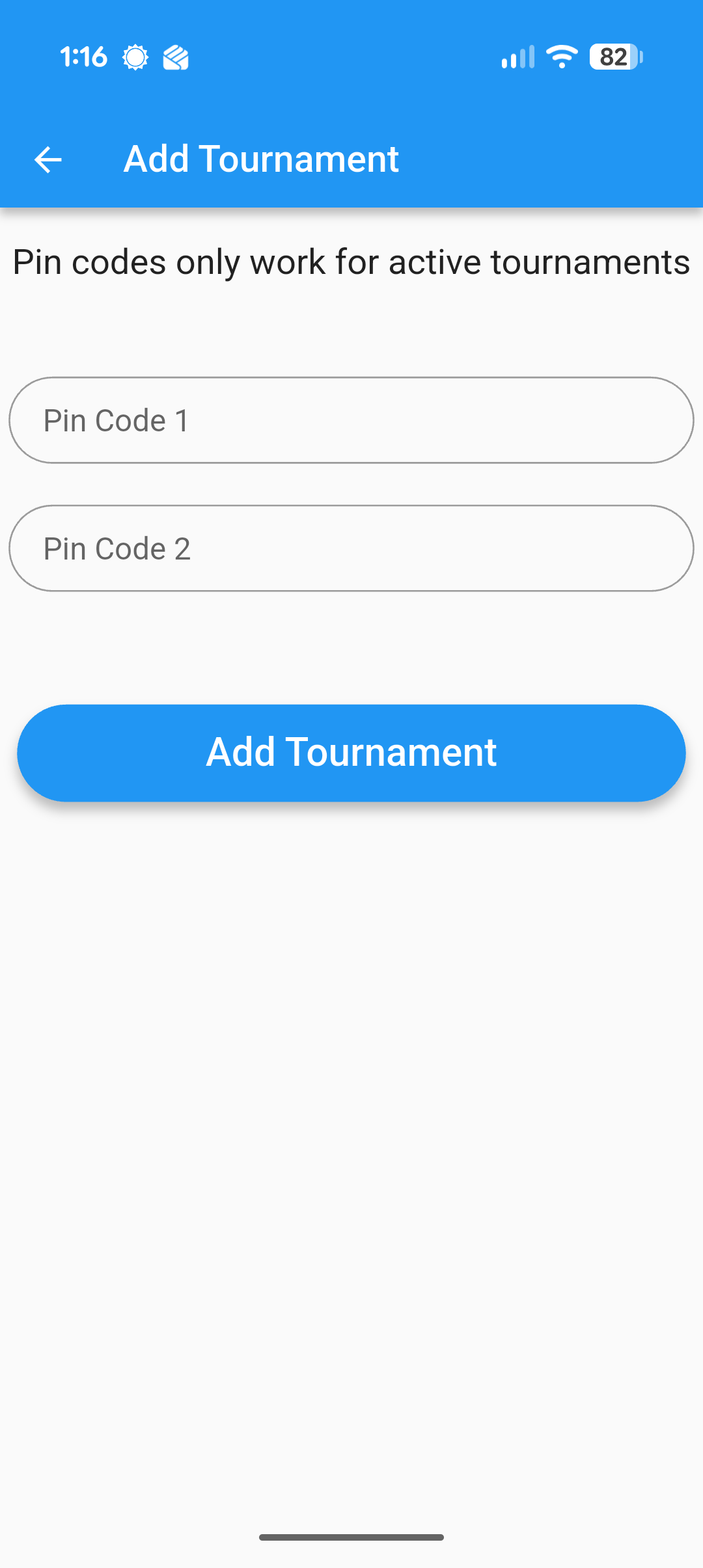 Tap Add Tournament.
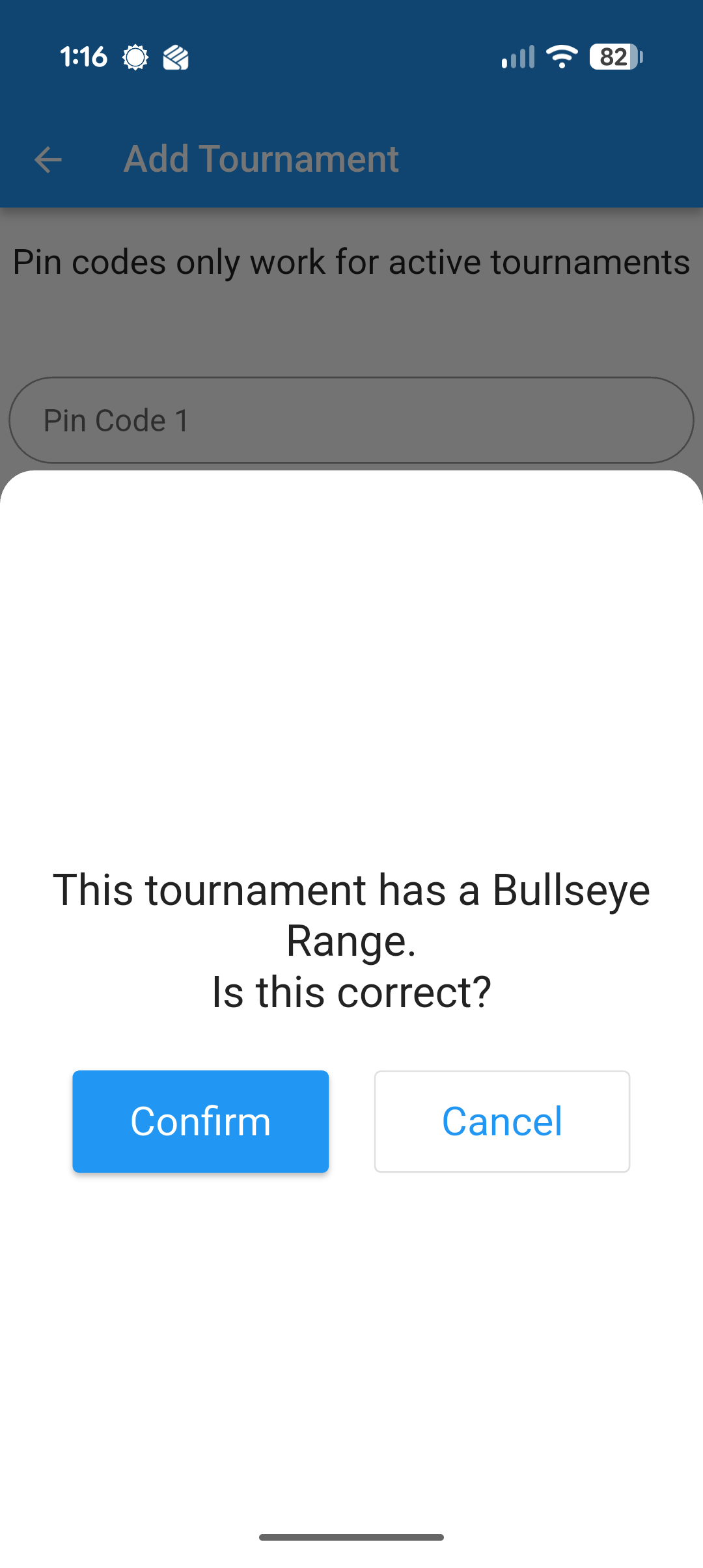 Confirm that the tournament's range type is correct.
Score an archer
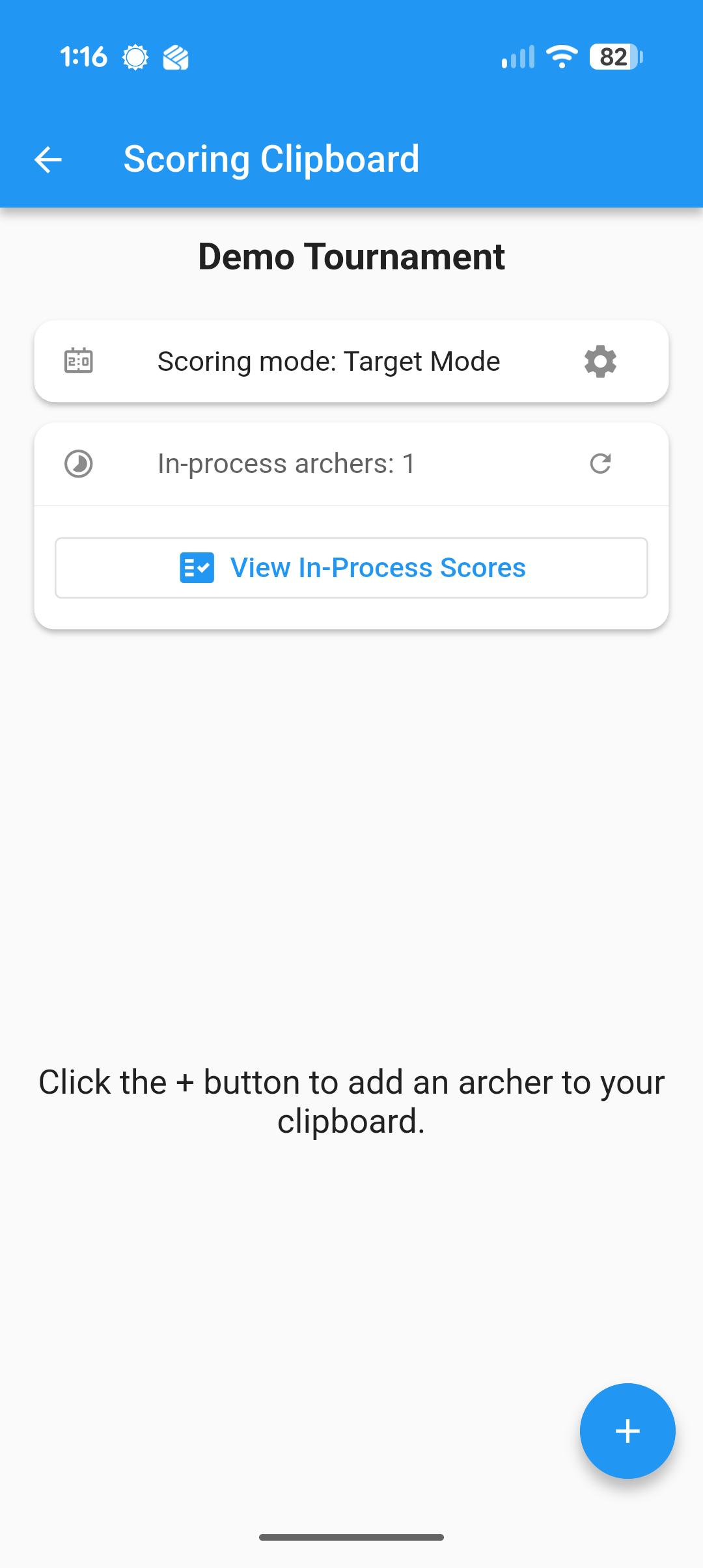 Use the Scoring Clipboard and tap + to add an archer.
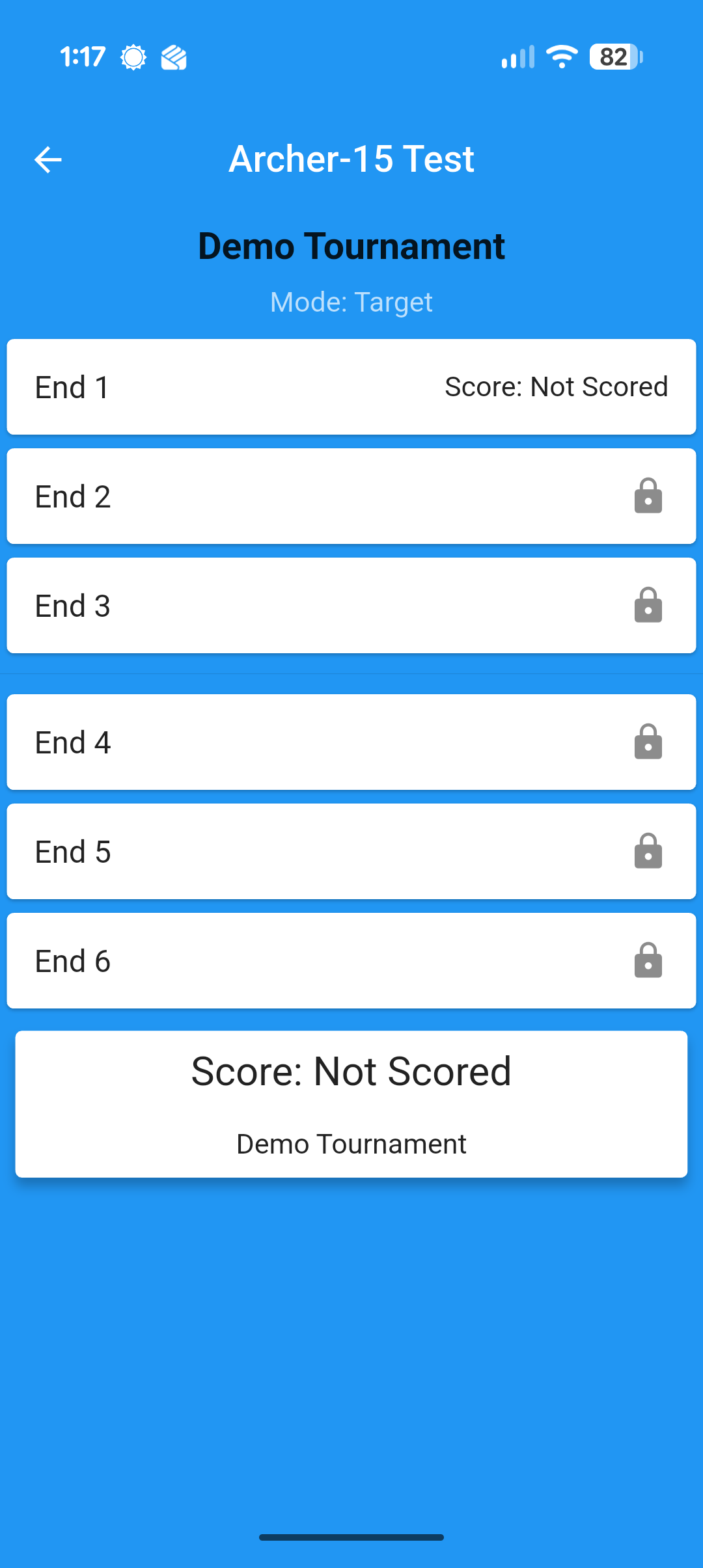 Select the next available end.
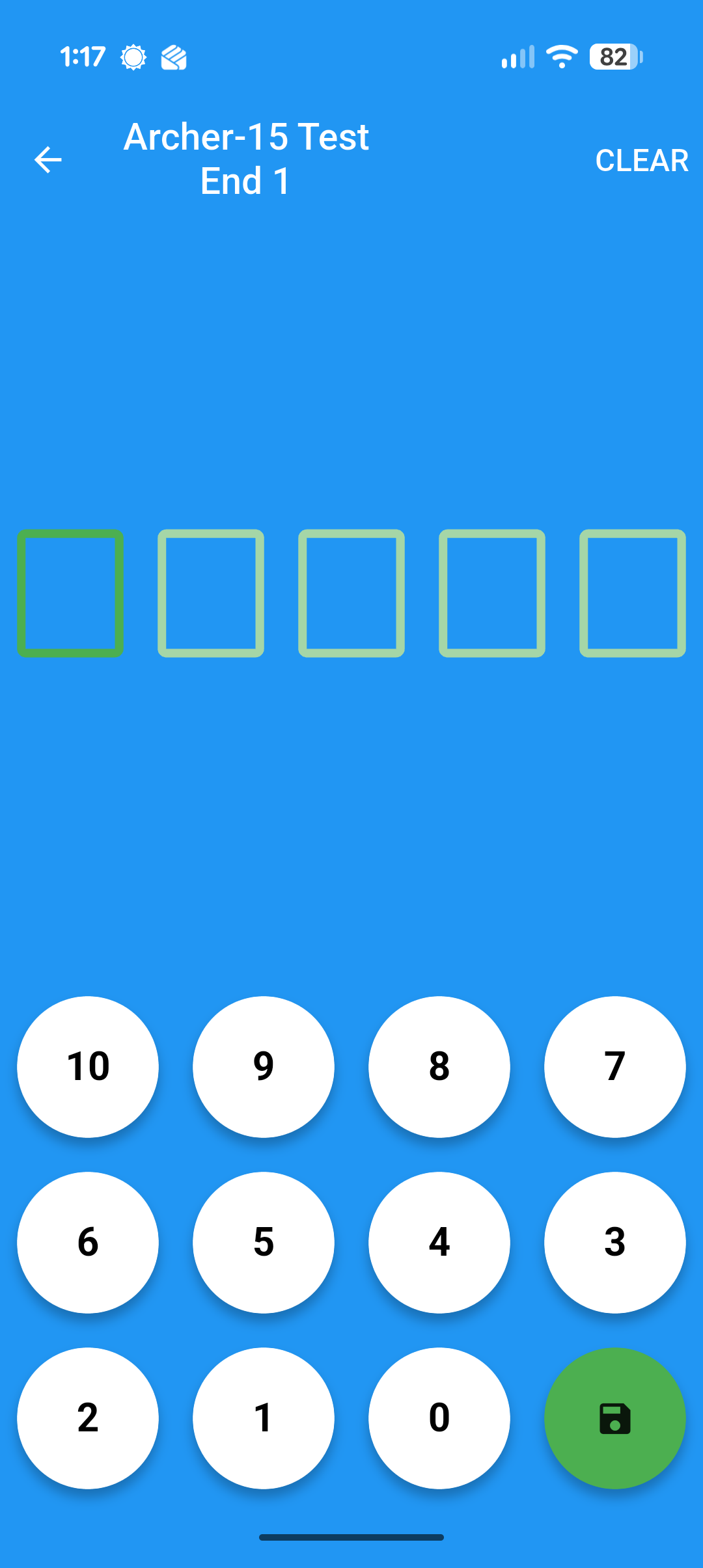 Enter one score for each of the five arrows.
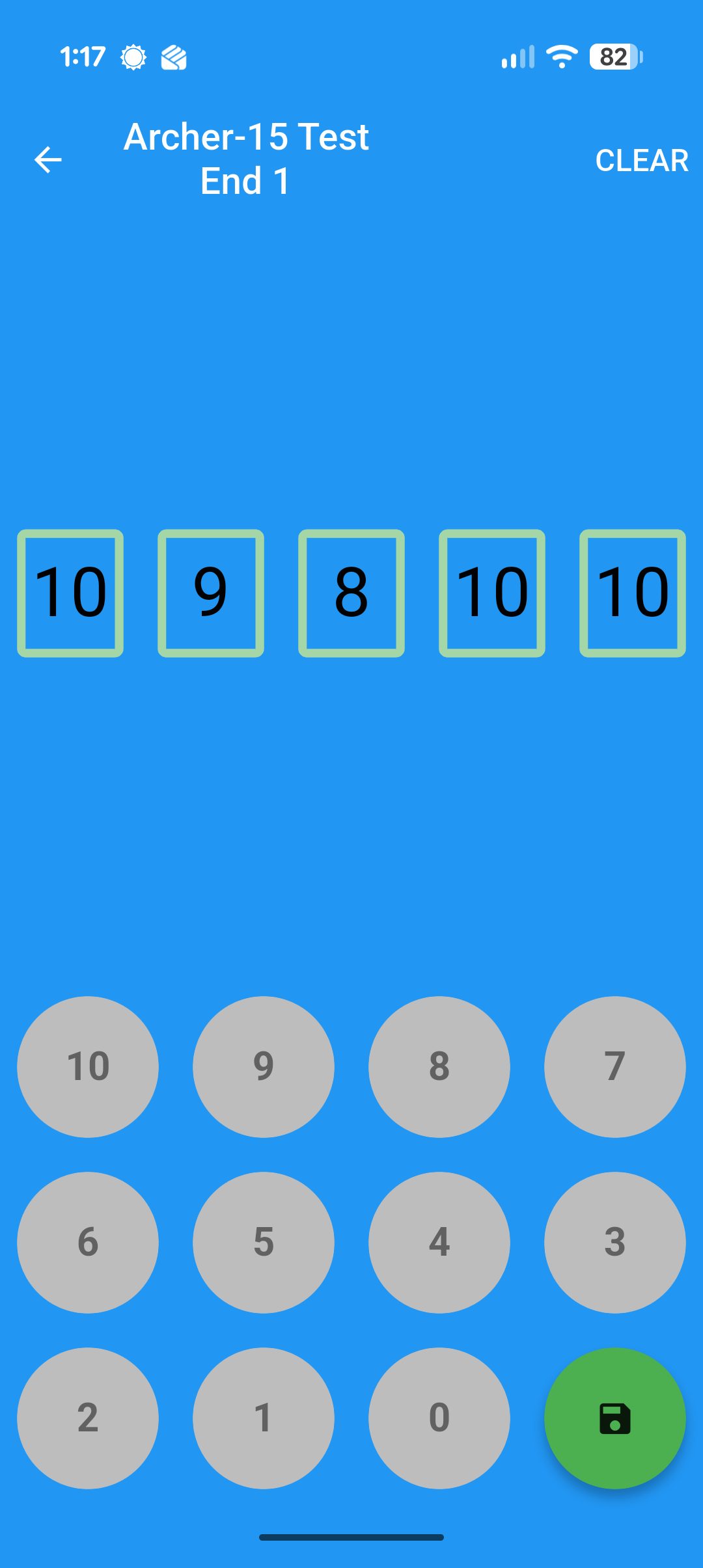 After entering all five values, tap the green save button.
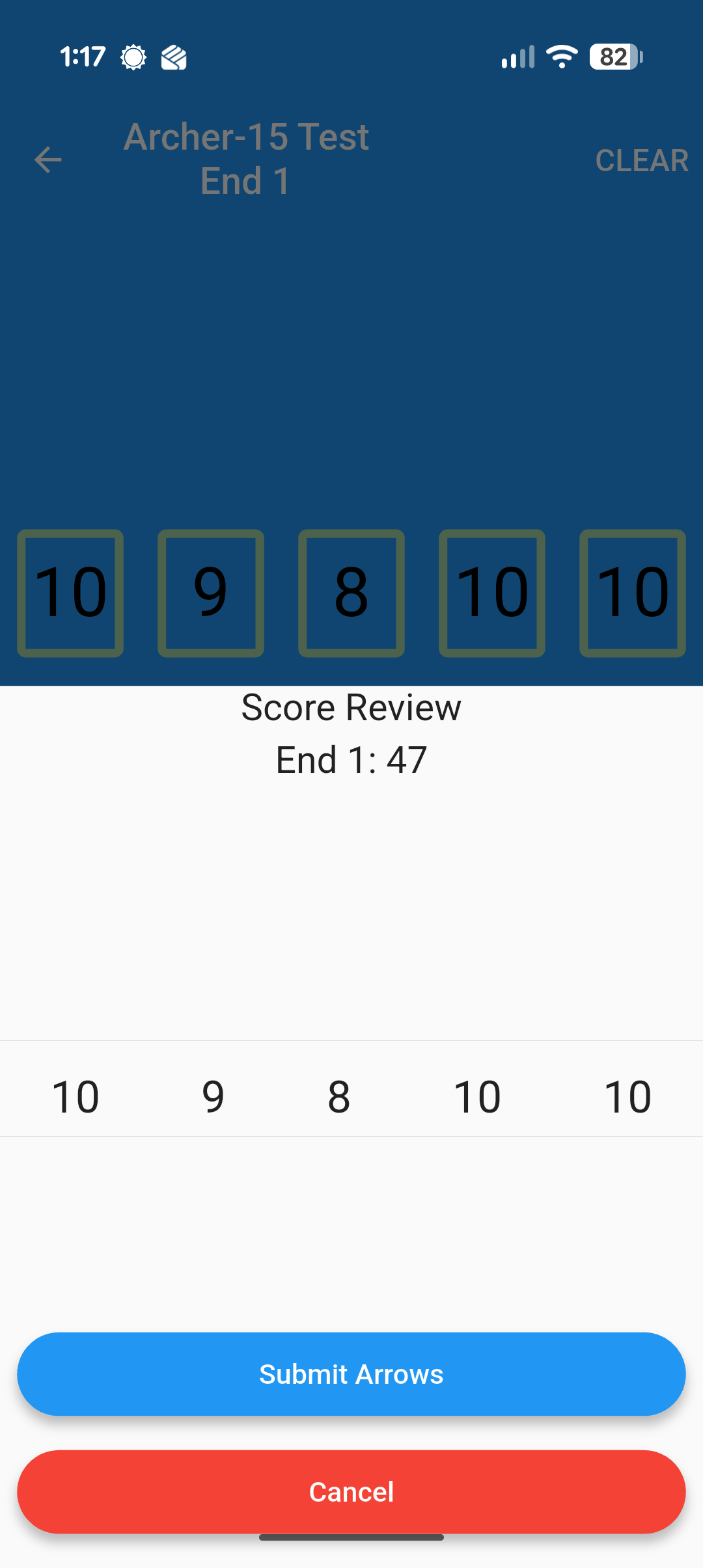 Review the arrow values and end total, then tap Submit Arrows.
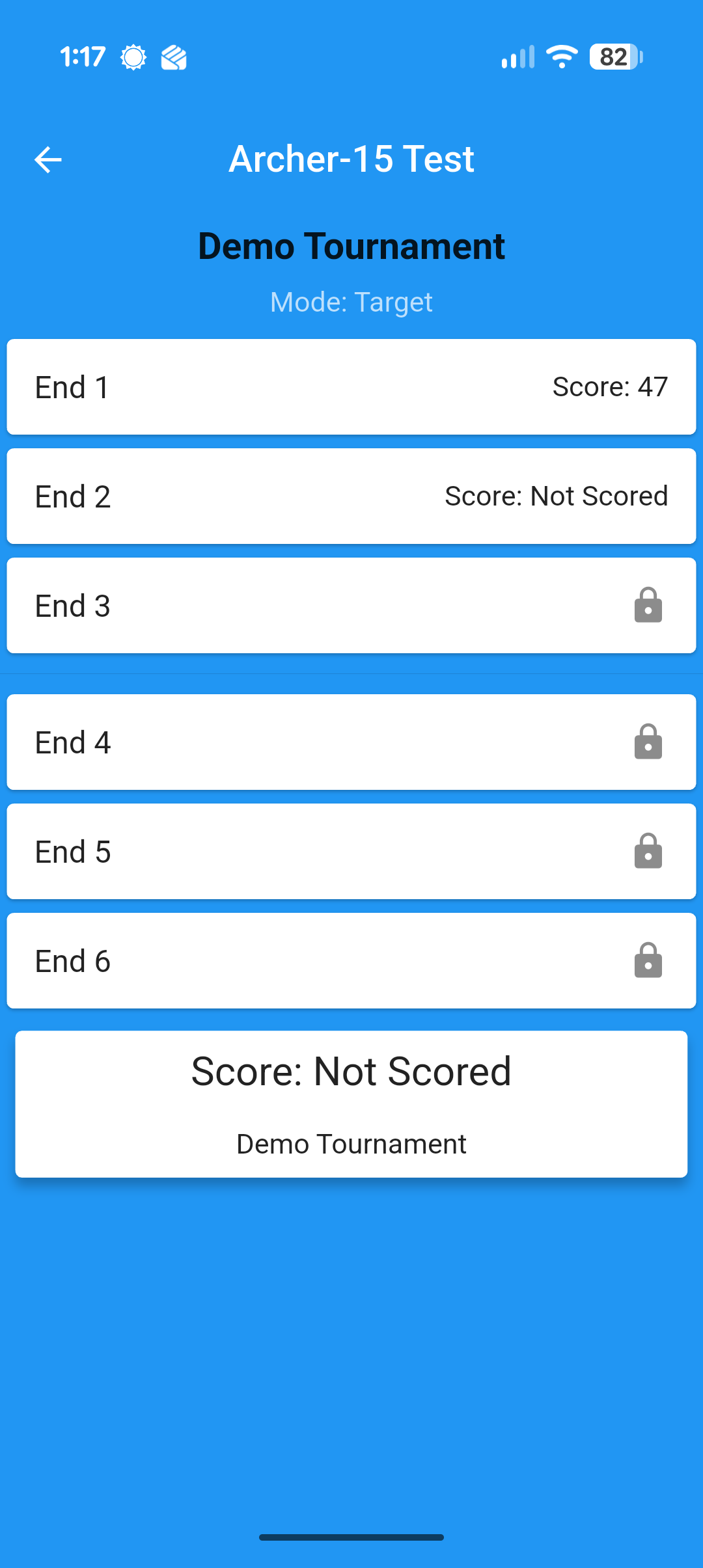 The submitted end displays its score and unlocks the next end.
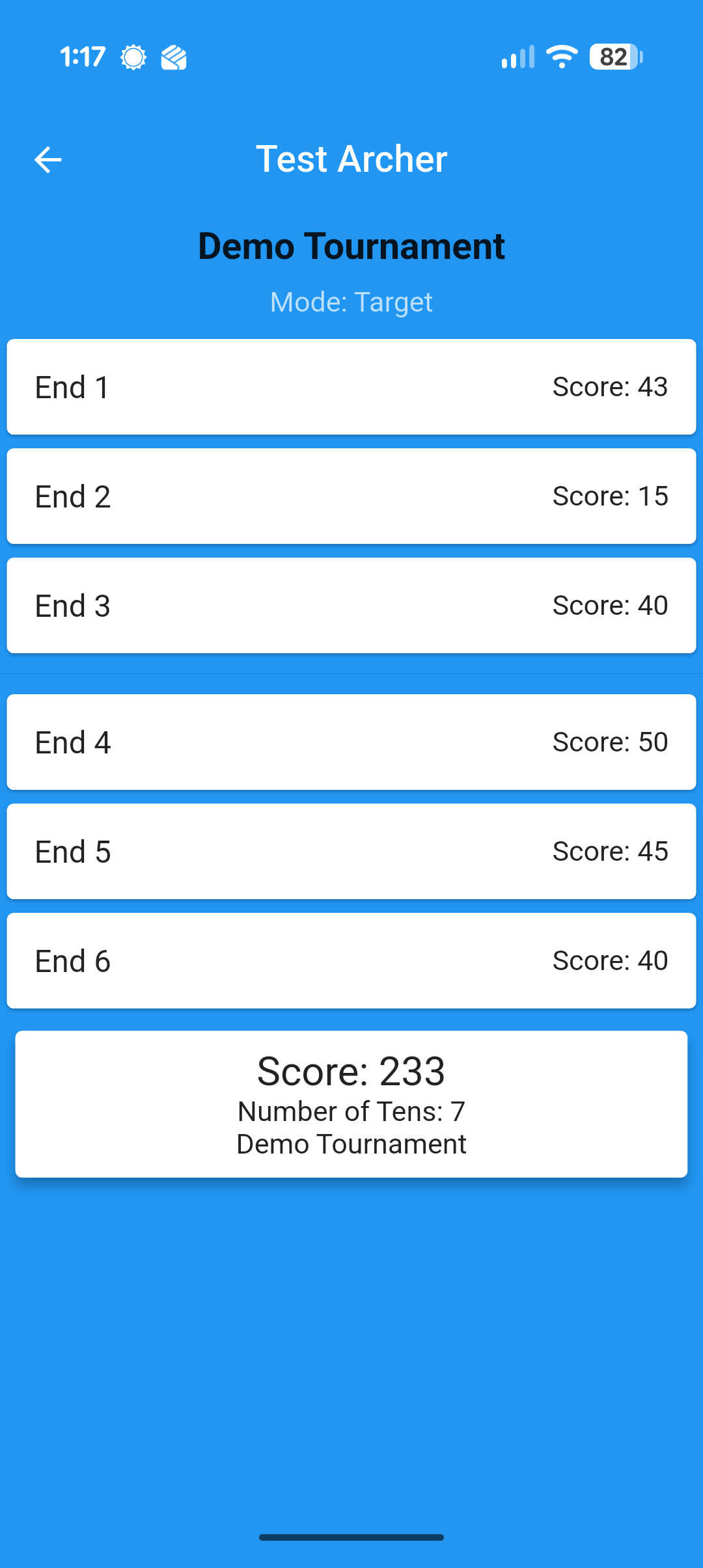 After all ends are submitted, verify the final score and number of 10s.